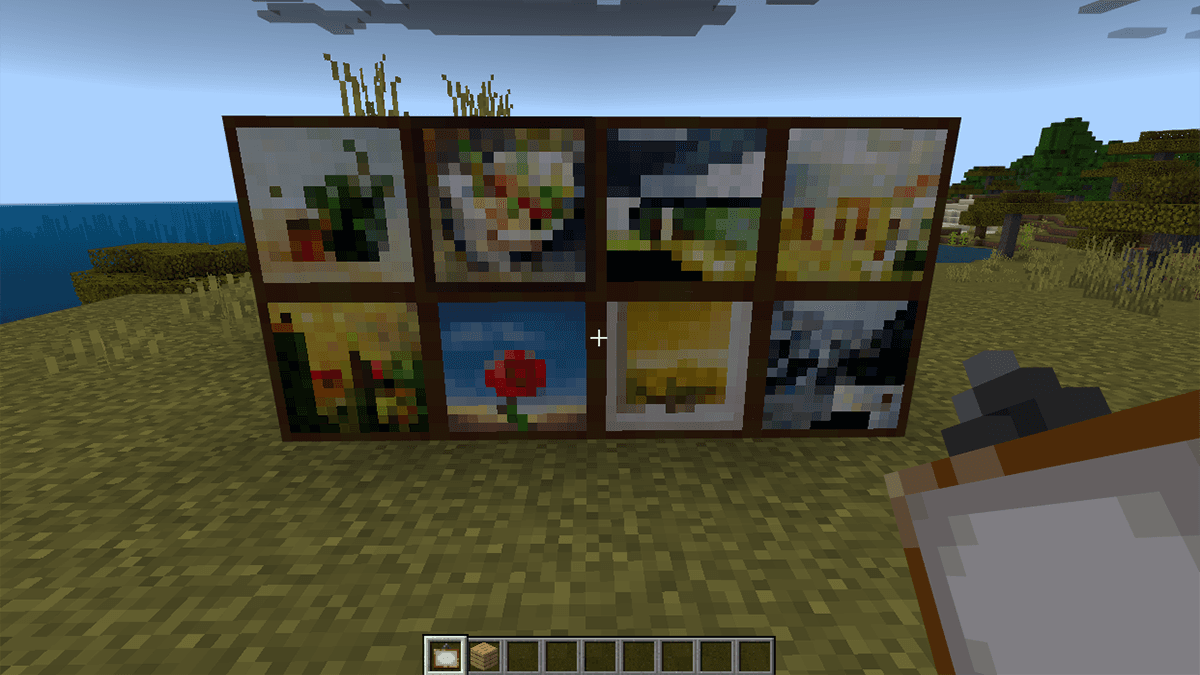
First week of content for the Minecraft Image Builder project
# Week 1: Getting Started With Your Minecraft Image Builder
Welcome to the Minecraft Image Builder project! We're excited to have you here. This week, we're building the foundation for your system that will take images and recreate them with blocks in Minecraft using AI. By the end of this week, you'll have a working user interface where you can upload an image and spawn a bot in your Minecraft world.
### 1. Understanding Git and Version Control
Since you've already created your repository and virtual environment in Week 0, let's make sure you understand the basics of using Git for this project.
1.1 Essential Git Commands
You'll be using these commands throughout the project:
- git status - Check what files have changed
- git add . - Stage all changed files for commit
- git commit -m "Your message here" - Save your changes with a description
- git push - Upload your commits to GitHub
- git pull - Download the latest changes from GitHub
1.2 Good Commit Practices
- Commit frequently with clear messages like "Add image upload functionality" or "Fix bot connection issue"
- Push your code at the end of each work session
### 2. Setting Up Your Minecraft World
2.1 Creating Your Build World
1. Launch Minecraft Java Edition 1.20.4
2. Click "Singleplayer" → "Create New World"
3. Configure your world:
- Game Mode: Creative
- Allow Cheats: ON
- World Type: Superflat
4. Click "Create New World"
2.2 Opening Your World to LAN
Your bot needs to connect to your Minecraft server, so we'll set up a local server:
1. Once in your world, press Esc to open the menu
2. Click "Open to LAN"
3. Set the port to 54569 (we'll always use this port for consistency)
4. Click "Start LAN World"
5. Look in the chat for a message like: Local game hosted on port 54569
You will have to do this every time you quit and rejoin your world.
### 3. Setting Up Your Anthropic API Key
For this project, we will be using an LLM from Claude to analyze images, but you could also use an OpenAI model. One of those two would be your best bet.
3.1 Getting Claude API Access
1. Go to [console.anthropic.com](https://console.anthropic.com)
2. Sign up or log in
3. Navigate to "API Keys" in the settings
4. Click "Create Key" and copy it immediately. You may want to paste it in a .txt file for the moment
5. Add $10 in credits to your account: Settings → Billing (I used a little less than this when creating the project)
3.2 Storing Your API Key Securely
1. Create a file named .env in your project root
2. Add this line: ANTHROPIC_API_KEY=your_key_here
3. Make sure .env is already in your .gitignore file (it should be from Week 0)
### 4. Installing Required Libraries
4.1 Python Dependencies
Ensure your virtual environment is activated, then install the required packages:
1. Download the [requirements.txt](requirements.txt) file from the instructions repo
2. Place it in your project root
3. Install with: pip install -r requirements.txt
requirements.txt contents:
```
anthropic
dotenv
streamlit
javascript
flask
transformers
torch
gunicorn
```
What each library does (the ones that matter currently):
- anthropic - Connects to Claude AI for image analysis
- dotenv - Loads your API key from the .env file
- streamlit - Creates the web interface for uploading images
4.2 Node.js and Mineflayer
Your Minecraft bot runs on Node.js:
1. Download and install Node.js from [nodejs.org](https://nodejs.org) (use the LTS version)
2. Verify installation in any terminal: node --version and npm --version
3. Create a /bot directory in your project root
4. Initialize npm: npm init -y
5. Install Mineflayer: npm install mineflayer
npm is a package manager for JavaScript applications sort of like how a .venv handles Python packages. Mineflayer is the library we will use to create our bot.
### 5. Building Your Streamlit App
5.1 Create the Basic Interface
Create a new file named main.py in your project root:
```python
import streamlit as st
from PIL import Image
def main():
st.title("Minecraft Image Builder")
uploaded_img = st.file_uploader("Choose an image")
if uploaded_img is not None:
img = Image.open(uploaded_img)
# Display the uploaded image
st.image(img, caption="Uploaded Image", use_container_width=True)
if name == "__main__":
main()
```
5.2 Test Your Streamlit App
Run your app with: streamlit run app.py
Your browser should open automatically. Try uploading an image and see it displayed!
### 6. Creating Your Minecraft Bot
6.1 Basic Bot Connection
Create a file named bot.py in your /bot directory:
```python
from javascript import require, On # mineflayer is a javascript package
from dotenv import load_dotenv
import os
import socket
load_dotenv(override=True)
claude_key = os.getenv("ANTHROPIC_API_KEY")
mineflayer = require("mineflayer")
class BuilderBot:
def init(self, username):
"""
Initializes a bot in Minecraft
"""
s = socket.socket(socket.AF_INET, socket.SOCK_DGRAM)
s.connect(("8.8.8.8", 80))
ip = s.getsockname()[0]
s.close()
try:
host = ip
port = 54569
name = "R2D2" # Replace with the desired bot username
self.bot = mineflayer.createBot(
{
"host": host,
"port": port,
"username": name,
}
)
self.username = username
self.setup_listeners()
except Exception as e:
print("Failed to start bot")
return
```
The initializer for the class uses a clever way to get your IP: makes a UDP connection with Google's public DNS server.
⚠️ Important Notes:
- This method may not work if you're using a VPN (disconnect it during development)
- If you're using WSL or Docker, you may need additional network configuration
- You may have to manually get and hard code your IP in instead
6.2 Listener functions for the bot
Add and complete this code after your init function:
```python
def setup_listeners(self):
@On(self.bot, "spawn")
def handle_spawn(*args):
"""
Spawns the bot next to you (need player coords)
"""
self.bot.chat(f"/tp {self.username}")
@On(self.bot, "chat")
def on_chat(this, sender, message, *args):
"""
Handles chats
:param sender: The sender of the message
:param message: The message that got sent
"""
# TODO:
# 1. Ignore messages sent by the bot itself.
# 2. Convert the message to a string (if needed).
# 3. Check if the message (case-insensitive) equals "come".
# 4. If it does, make the bot send a teleport command
# that teleports the bot to self.username.
@On(self.bot, "end")
def on_end(*args):
"""
Ends the bot
"""
print("Bot disconnected.")
```
### 7. Testing Your Bot Initializer
7.1 End-to-End Test
1. Make sure your Minecraft world is running and open to LAN on port 54569
2. Create a short Python script to create your bot:
```python
from bot import BuilderBot
def main():
username = "MinecraftUsername" # Replace with your username
bot = BuilderBot(username)
if name == "__main__":
main()
```
3. Run this script in the terminal
4. Switch to Minecraft and watch for your bot to join!
7.2 Troubleshooting
- Bot doesn't connect?
- Verify your world is open to LAN
- Double-check your IP address and port
- Make sure port 54569 isn't blocked by your firewall
- Streamlit won't start?
- Verify your virtual environment is activated
- Check that all packages installed correctly with pip list
- Node.js errors?
- Verify Node.js version is 18.x or higher
### 8. BONUS: Add custom bot commands
Each week will have a bonus section. There's a positive correlation between winning project members and those that go above and beyond to complete the bonus content.
Feel free to add special commands or edit the given ones to make your bot more interactive! Examples:
- Have your bot follow you by walking
- Have your bot respond to other key words
- Have your bot respond to unknown commands with an LLM response
## Wrapping Up
By the end of this week, you should have:
1. Set up Git workflow and understand basic version control
2. Created a Minecraft 1.20.4 superflat world with LAN enabled
3. Installed all required Python and Node.js dependencies
4. Built a basic Streamlit interface with image upload
5. Successfully spawned a Minecraft bot from your Python application
6. (Bonus) Tested Claude API integration
### Next Week:
We will integrate Claude's vision capabilities to analyze uploaded images and generate block-by-block building plans. Hint: Think about how we might convert image pixels to Minecraft blocks with similar colors!
Great job laying the foundation for your Minecraft Image Builder!