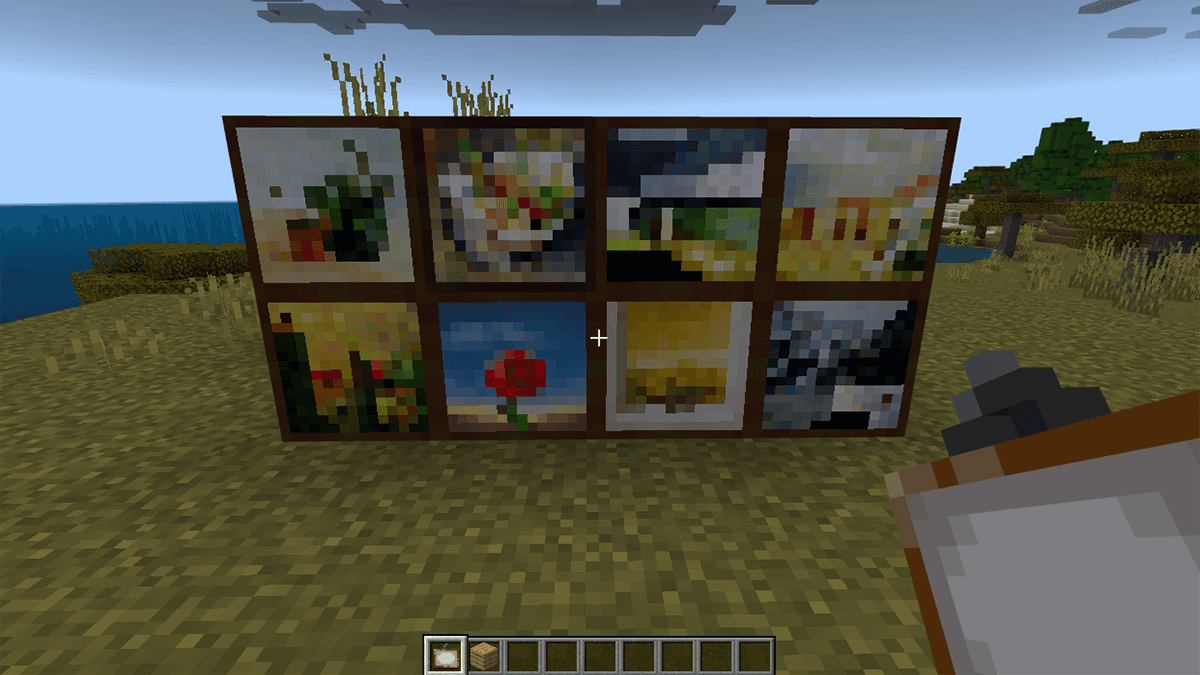
Second week of content for the Minecraft Image Builder project
# **Week 2: LLM Integration & Prompt Engineering**
Welcome back! This week we're integrating Claude's vision capabilities into your Minecraft Image Builder. By the end of this week, you'll be able to upload an image, send it to Claude for analysis, and receive a structured JSON build plan describing what blocks to place and where. We'll also move your bot spawning logic into a proper Flask API.
---
### **1. Setting Up Flask as Your Back End**
Right now, you spawn the bot with a standalone script. This week we'll wrap that logic in a Flask app so your Streamlit front end can trigger it via an API call, and so we can reuse a single global bot instance.
**1.2 Create app.py**
Create app.py in your project root:
```python
from flask import Flask, jsonify, request
from bot import BuilderBot
from bot_skills import build_from_json
import json
app = Flask(__name__)
BOT_INSTANCE = None # global bot instance
@app.route("/")
def hello_world():
return "<p>Hello, World!</p>"
if name == "__main__":
app.run()
```
At this point, run your back end with flask run in the terminal. Open a new tab in your browser and search for the localhost url that your app is running on.
**1.3 Add a Spawn Button to Streamlit**
Update your main.py to include a button that calls your Flask endpoint:
```python
def call_starter(username):
"""username can be your hard-coded Minecraft name, or you could add a text input to capture this"""
url = "http://localhost:5000/spawn_bot" # This will have to change once deployed
params = {"username": username}
try:
response = requests.get(url, params=params) # Make the GET request
if response.status_code == 200:
data = response.json()
st.session_state["api_data"] = data # Store the result in session state. This state will last while the tab is open
st.success("API call successful!")
else:
st.error(f"API call failed with status code: {response.status_code}")
except requests.exceptions.RequestException as e:
st.error(f"An error occurred: {e}")
if st.button("Start Bot"):
call_starter(username)
```
Add the spawn_bot endpoint to your flask app:
```python
@app.route("/spawn_bot")
def spawn_bot():
# TODO: Reference the global BOT_INSTANCE variable so this function can read and modify it (hint: use the 'global' keyword)
# TODO: Get the "username" parameter from the request's query string
# TODO: Check if the bot has not been started yet
# TODO: Create a new BuilderBot instance using the username and assign it to BOT_INSTANCE if the bot hasn't been started. Then return a JSON response indicating the bot was just started
# TODO: If the bot has been started already, return a JSON response indicating the bot is already running
```
**1.4 Running Both Servers**
You'll need two terminal windows open to test:
- Terminal 1: python app.py (Flask back end)
- Terminal 2: streamlit run main.py (Streamlit front end)
---
### **2. Image Resizing**
Before sending an image to Claude, we need to resize it. This matters for two reasons: Claude's API charges by token count, and large images are processed slowly and cost significantly more.
**2.1 How Claude Prices Images**
Anthropic charges based on image dimensions. Smaller images use fewer tokens and cost less. For this project, a good target is **1568x1568 pixels or smaller**. This keeps costs low while giving Claude enough detail to generate a useful build plan.
For the full pricing breakdown by image size, check [Anthropic's vision docs](https://docs.anthropic.com/en/docs/build-with-claude/vision).
**2.2 Create a resize_image Utility**
Create a new file utils.py in your frontend folder:
```python
from PIL import Image
def resize_image(img):
w, h = img.size
longer_edge = w if w > h else h
if longer_edge > 1568:
max_size = (1568, 1568)
img.thumbnail(max_size, Image.LANCZOS)
return img
```
You will have to import this function into your main Streamlit script and use it on the image object.
---
### **3. Building the Claude Vision Pipeline**
Now for the core of this week: sending your image to Claude and getting back a Minecraft build plan.
**3.1 Understanding the Claude API for Vision**
Claude accepts images as base64-encoded data in the messages array. Our LLM request will start with a max tokens size of 1024 but can be increased later.
We're keeping max tokens relatively low for now. Our JSON output doesn't need to be enormous, and lower limits protect you from massive token usage while you're still testing prompts. You can increase this later when you're confident in your outputs and want to create larger builds.
**3.3 Defining Your JSON Schema**
Before writing prompts, youu must define exactly what output you want. Within your bot folder, make a new file called models.py. Here's the schema we'll use for build instructions:
```python
from typing import List, Optional
from pydantic import BaseModel, Field
class Block(BaseModel):
block_type: str = Field(description="Type of the block")
x: int = Field(description="X coordinate of the block")
y: int = Field(description="Y coordinate of the block")
z: int = Field(description="Z coordinate of the block")
facing: Optional[str] = Field(
default=None, description="Facing direction of the block"
)
class MinecraftBuild(BaseModel):
schematic_name: str = Field(description="Name of the schematic")
blocks: List[Block] = Field(description="List of blocks in the schematic")
```
These two classes will be used to assert that our output from the LLM is exactly what we want. Each block entry needs:
- x, y, z — coordinates relative to a build origin point
- block_type — a valid Minecraft block name (e.g., "oak_planks", "stone", "glass")
- facing — an optional field that determins orientation for blocks like stairs
**3.4 Create claude_client.py**
Copy the file called claude_client.py into your frontend folder. I decided to provide you with this file because it's kind of long, but please make sure to go through comments in the code and make sure you understand what is happening.
Notice how there's a "Few shot 1" in the system prompt. You can think of this just as an example for the LLM to know what it's supposed to output. This is a good technique to follow in system prompts.
**3.5 Using Claude's Tool Use for Structured Output**
If you find Claude occasionally returns malformed JSON, you can enforce structure using Claude's beta feature for structured output. This tells the API to always return output that matches a schema:
```python
output_format = {
"type": "json_schema",
"schema": {
"type": "object",
"properties": {
"schematic_name": {"type": "string"},
"blocks": {
"type": "array",
"items": {
"type": "object",
"properties": {
"block_type": {"type": "string"},
"x": {"type": "integer"},
"y": {"type": "integer"},
"z": {"type": "integer"},
},
"required": ["block_type", "x", "y", "z"],
"additionalProperties": False,
},
},
},
"required": ["schematic_name", "blocks"],
"additionalProperties": False,
},
}
response = client.beta.messages.create(
model="claude-sonnet-4-5",
max_tokens=tokens,
system=SYSTEM_PROMPT
betas=["files-api-2025-04-14", "structured-outputs-2025-11-13"],
messages=[
{
"role": "user",
"content": [
{
"type": "image",
"source": {"type": "file", "file_id": image_data.id},
},
{"type": "text", "text": prompt},
],
}
],
output_format=output_format
json_str = response.content[0].text.strip()
```
---
### **4. Wiring It All Together in Streamlit**
Update main.py to call Claude when an image is uploaded and display the results:
1. Resize the image first with the function you made
2. Import and call the call_analyzer function
3. Display the JSON response in a Streamlit code object (with language="json"). Sometimes the response from Claude will be cut off and not include the final bracket, so you will have to handle this case
---
### **5. Testing Your Pipeline**
**5.1 What to Test With**
Start with simple, high-contrast images that have clear structure. Good test cases:
- A simple house
- A tree
- A tower
- A basic pixel-art image
Avoid photos with lots of detail or complex backgrounds for now.
**5.2 What "Good Output" Looks Like**
For this week, success means Claude reliably returns valid, parseable JSON that follows your schema. The build quality (whether the blocks actually look like the image) will be improved in future weeks. Focus on:
- JSON parses without errors every time
- Block types are valid Minecraft block names
**5.3 Troubleshooting**
- **JSON parse errors?** Try the structured output beta feature approach in section 3.5
- **Claude ignoring the schema?** Add a few-shot example directly in your prompt
- **API key errors?** Make sure your .env file is in the project root and load_dotenv(override=True) is called before creating the Anthropic() client.
- **High costs?** Double-check that resize_image is being called before encoding. A 4K photo can cost 10–20x more than a resized version.
---
### **6. BONUS: Prompt Engineering for Better Results**
The quality of Claude's build plans is directly tied to your prompt. Here are techniques to improve them:
**6.1 Few-Shot Prompting**
Add an example of the exact input/output you want directly in your prompt. This shows Claude the format rather than just describing it. If you already include a few shot, then you could add another example or change up the current one.
**6.2 Prompt Variations to Try**
Depending on patterns you're seeing in the builds you can reinforce behavior at the beginning and end of the prompt. For example, if the bot keeps skipping the roof of buildings, tell it to do so in the **Instructions** section.
---
## **Wrapping Up**
By the end of this week, you should have:
1. A Flask back end with a /spawn_bot endpoint and a global bot instance
2. A resize_image utility that keeps API costs low
3. A claude_client.py that encodes images and calls Claude's vision API
4. A prompt that reliably returns structured JSON build plans
5. A Streamlit UI that ties everything together: upload image → generate build plan → display JSON
6. (Bonus) Improved prompt quality through few-shot examples and prompt variations
### **Next Week:**
We'll take that JSON build plan and actually execute it making the bot place blocks in Minecraft one by one. **Hint:** Think about how you'll iterate through the block list and translate each coordinate into a bot command!